Turnitin’s plugins are the gift that keeps giving…
This bug still has not been addressed and it was showing on one of our customers sites after they moved to Moodle 4.1.4 and the latest version of Turnitin tool 3.9+ (2023032701)
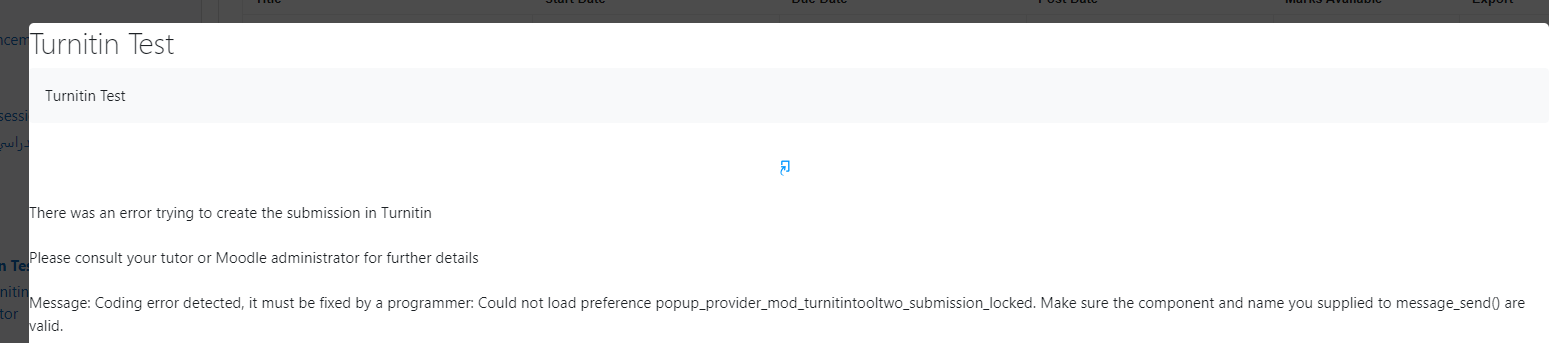
The error shows after a user makes a submission via a ‘Turnitin Assignment 2’ submission activity point.
The above shows Turnitin trying to display a Digital receipt and cannot, this is because these settings have been wiped out during the upgrade.. sometimes this happens and most times not!
Head to this location on your site and check the following are enabled for Email or Web /admin/message.php
This will then allow the Digital receipt to come through to the frontend on submission
If you use Turnitin via the core Moodle Assignment activity this does not occur, better still why not reach out to CoSector and ask to see our fully featured Electronic Management of Assessment platform plugin for Moodle (Coursework).
Today our Dualit HMR2 Mixer which we’ve owned for some 12 years stopped working as the whisks eject button got trapped in the way off the on/off power slider…
If I didn’t fix it then I wouldn’t get any more cake.. I like cake, so this is how I fixed it.
A fixya page exists showing how to open the mixer, but its pictures are missing… So I thought I’d post mine on here.
Start by plugging the plug into the actual mixer where the whisks go and turn the plug about a 1/10th of a rotation clockwise. This allows you to take the front off.
Unscrew screw 1 which allows you to pull the base where the cord is stored down about an inch, this reveals screws 2 & 3 behind the fan.. unscrew these as well.
Now carefully prise the bottom of the handle up, there’s 3 hidden clips (2 at the middle sides and 1 at the end) which will probably snap, I had to superglue 2 back on!
This should allow you access to the power slider and the stuck ejection button. Ours had failed as the actual button has two tiny pegs on it which had snapped off.. after attempting to superglue these on… And pushing it back in, these snapped again but held in place – luckily!
Reverse the above, make sure the power. Slider matches the position of the power switch and clip it back together.. redo up the screws.
I then glued on a thin piece of plastic on the button and down towards where the power slider sits to counteract the broken pegs at the top end of the button, which keeps it perfectly in place
In my new role I seems to have lines and lines of numbers from scheduled tasks logs and the like, which I then have to action quickly back into SQL queries. So I thought I write down how I do that.. for two reason.
You might stumble across it
I may forget how to do it 😁
Launch Notepad ++
Press CTRL + H to bring up Replace
Find what:
^(.+)$
Replace with:
‘\1’,
Select Regular expression
Replace All
This coverts the above list of numbers into the following format
This way you can now wrap that in brackets and query it.
I’ve started a new job there as a Customer Success Consultant.
Amongst other things we host and manage Moodle installations mainly for the schools / colleges and university’s in the Higher Education sector.
We are currently walking our customers through the changes the move to Moodle 4.1 brings and helping them get the best from their Virtual Learning Environment.
Want to move to a professionally hosted platform, contact us.
Good Morning, just thought I’d write a quick post about the blocks within the Boost theme in Moodle 4.
I’ve noticed that every block has the block’s name as a title. In our instance of Moodle 4 we do not want them as it duplicates what the content already displays.
So this is the CSS you need to pop into Boost / Advanced Settings /admin/settings.php?section=themesettingboost#theme_boost_advanced in the box ‘Raw SCSS theme_boost | scss’
/* Hide My Office365 block title */
.block_microsoft  .card-title {
    display: none!important;
}

/* Hide My Overview block title */
.block_myoverview .card-title {
    display: none!important;
}
In our case this does the following, the two blocks goes from this
To this
Hope that helps someone out there. I’m documenting this so I do not forget it when we go live to Moodle 4.1 in June 2023
The Course view on Moodle 4 looks very mobile like. If like me you’d prefer the course page to use all available space then do the following change it to the percentage that you think looks the best 90 or 100%
You’ve noticed that the UPN (User Principle Name) from Azure AD is represented within the email field within Moodle, even though all you have done is update the Office365 plugin suite set to the latest plugins.
What is going on there then?
If like us you have LTI which allow users access via their email address, then you will most likely find that these are now broken.
How to fix
Run the following SQL on the database
SELECT * FROM mdl_config_plugins WHERE PLUGIN = 'local_o365' AND NAME LIKE '%tenant%';
Does this return a blank entry ?
It should not be, it should return something which looks like this
You need to go here and get a Azure Administrator to login on the other side of the ‘Provide Admin Consent’ button : <a href=”http://<Your Moodle Site>/admin/settings.php?section=local_o365
This writes back the above required information so the sync can correct talk to Azure AD, rather than it only talking in a guest mode, in guest mode it can only get your UPN and not your email details.
Now perform a Full user sync by first going here : http://<Your Moodle Site>/local/o365/acp.php?mode=maintenance_cleandeltatoken This clears the delta tokens and forces the sync to do one full sync.
Then allow ‘Azure AD Sync’ in task scheduler to run, it will take a while to do so, it takes around 1.5hrs on our site.
Now check that username is UPN and email is email from Azure AD, although redacted the below gives you an idea that there is a difference.
Why has this happened? one of the updates has blanked out the settings in the database. I’ve asked the developers to consider adding whether the connection to the tenant is good by showing that in the Moodle frontend.
Time (again) has come around again for a major upgrade of Moodle 3.10 to 3.11, with this bring the fun of making sure the theme is working okay. Adaptable has just released their latest theme for Moodle 3.11, so I’ve taken this and cloned it. This makes it easier for us to know which theme works on which version of Moodle we have installed, rather than it to be just named Adaptable. In the past we’ve needed to flip the DNS to a new production server and without this it’s difficult to know which theme works.
Hopefully the below will work for you, it took me 3 attempts to crack it (this year), without having random php / file errors or SCSS (which this version has now started using) issues showing on the browser or in dev tools.
Step 1
Download the latest version of your theme, we are using the 3.11 version of Adaptable here. In Notepad ++ use the ‘Find in Files’ function to locate everything ‘Adaptable‘ which is the current name of the theme, replace that with your new name ‘ManMet-Adaptable‘. This should be two hits in one file, then hit ‘Replace in Files’. This just changes the naming in the language pack
Step 2
Now search for ‘theme/adaptable‘ and replace all with ‘theme/manmet_adaptable‘ (dont use a minus symbol in the theme path). This should find 24 hits in 8 files, now replace all with ‘Replace in Files’.
Step 3
Search for the original name of the theme ‘adaptable‘, change this to ‘manmet_adaptable‘.
Step 4
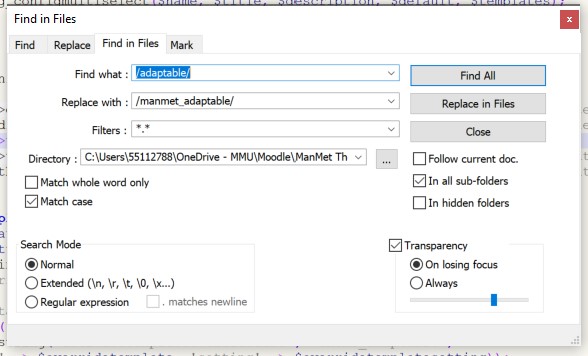
Now search the theme code for ‘/adaptable/‘ and replace with ‘/manmet_adaptable/‘.
Step 5
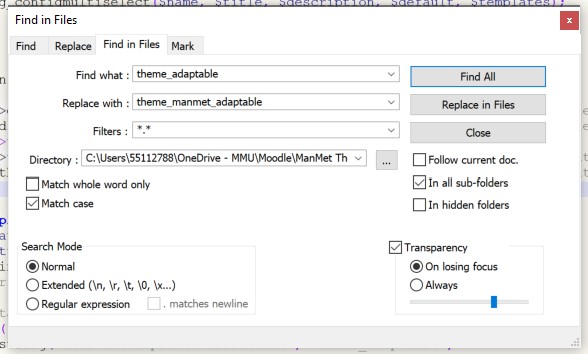
Now find ‘theme_adaptable‘ and change that to ‘theme_yourname‘, in my case this is ‘theme_manmet_adaptable‘.
Step 6
The unknown step.. I think it is required 🙂 I think it’s to do with the tabs in the theme settings. Search for ‘THEME_ADAPTABLE‘ and replace with ‘THEME_MANMET_ADAPTABLE‘, this should return around 18 hits in 7 files.
Step 7 – Change the name of the Language file
Rename ‘manmet_adaptable\lang\en\theme_adaptable.php’ to ‘theme_manmet_adaptable.php’ And any subsequent language packs in \es etc folders.
Step 8 –
Check places like config.php in the root of your theme and add any extra theme .css or .scss file which you might have in the \styles dir. Also check that the naming in \jquery\plugins.php file matches the name of the .js file in \jquery it should be under
Rename the main SCSS file from ‘\scss\settings\adaptable.scss’ to ‘\scss\settings\manmet_adaptable.cssc’.
Step 10 – Zip deploy and test
Change the name of the theme folder to match, in my case ‘manmet_adaptable‘, zip it up and deploy for testing. Bitnami Moodle local installs are idea to do this
Good luck ! should the above method not work for you, do try the one which was working for Moodle 3.10 themes or the one which was working for Moodle 3.9 themes which I wrote in 2018.
As of the October 2021 release it still does odd things when running for the first time with the following setting switched on, if you use Transitive / Nested AD security group to control the access
So I wrote this piece of Powershell script to check each of the returned suspended IDs with whether those were still active in AAD or not.
The top 3 lines are commented out, they are just should you need them then run them separately at the powershell command prompt. The top two are required to use the script and the 3rd is the line I use to run the script itself, which is saved as aad-crossreference.ps1 and it outputs the result to a file ‘results.txt’.
In the file to check, make sure it starts with a column name of ‘upn’, like so
Hope this helps you out if you ever need to do something similar.







 Not so many...