2013 in review

The WordPress.com stats helper monkeys prepared a 2013 annual report for this blog.

Here’s an excerpt:

The concert hall at the Sydney Opera House holds 2,700 people. This blog was viewed about 38,000 times in 2013. If it were a concert at Sydney Opera House, it would take about 14 sold-out performances for that many people to see it.

Click here to see the complete report.

How to do a Mail Merge – With more than one record per page

*** UPDATE 2021 *** The below has helped a lot of people out over the years since it was written in 2013. I’ve recently had a much more advanced email merge to contend with, so inserting the link to that post here.

Advanced Mail Merge : Multiple clickable URL entries per mail to user

I opted to learn how to use the mail merge features of MS Word linked to Excel, as each year my wife goes on about the hassles that she gets whilst trying to mail 4000 people & how difficult it is to get it right.

So this is what I learnt as I cracked the issues that she couldn’t, so this time next year her job will be that much easier.

I thought I’d add it as a blog post for two reasons, first to help you and second to remind me how to do it.

The first thing you need to do a mail merge is some data in Excel, I made up the following:

mailmerge-excel

Next launch Word and write a letter.

Next click the Mailings tab, Start Mail Merge drop down and select Step by Step Mail Merge Wizard

Now for the fun bit, work your way through the wizard, select an your Excel file to use & add to the existing letter an Address Block from the left menu, this will add in the address for each person, then choose a Greeting Line both of these two options reduces the amount of work that you have to put into your letter and personalises it to the max.
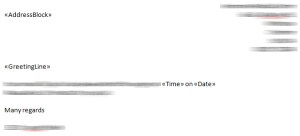
mailmerge-word

Now to cover one of problems my wife was having, she wanted to being able to have 3 letters printed to 1 page, thus saving on paper. if you just copy and paste the text 3 times on the one Word document then this doesn’t work, it’ll just repeat the same persons name and address 3 times.

The way you get around this is by requesting the next record, do this by marking the start of the next block with «Next Record»

before the request for «AddressBlock», so you’ll have your next record starting with:

«Next Record»«AddressBlock»

Time format, by default you’ll get all sorts of weird time formats. To change what time format gets displayed you need to editing the field code with Edit Field… this is available by selecting it on a right click on the current field, in this case on the merge field marked «Time» Then Field Codes button and add the following to get just the hours without any seconds.

MERGEFIELD Time \@ "HH:mm"

The above information mixed with a little bit of trial and error with make you a master at the Mail Merge functionality of MS Office.

Top Tip: If at any point you feel that the Mail Merge Wizard is not doing what you ask it to do, then it most probably isn’t. Its a complete wind up and learning how to do a mail merge by using the menu bar tools is the best advice I can give.

Second Top Tip: If at any point you want to remove the mail merge information from the word document, do so by opening the document, click on the Mailings tab, click the down arrow under the Start Mail Merge button, click on Normal Word Document. This will disconnect the Word document from the source document.

If you get a date out as 1899 then read this to explain all and fix the issue

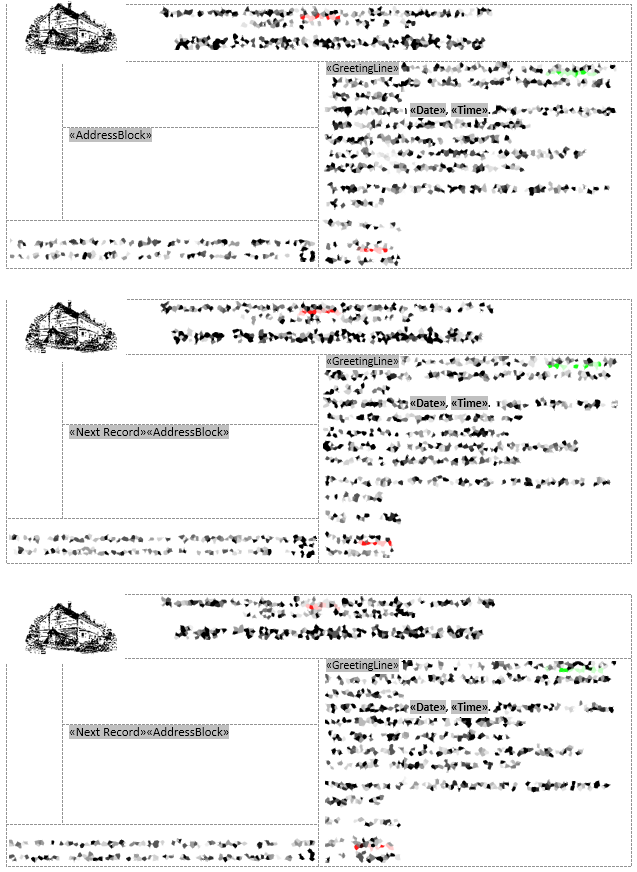
Image below shows how I manage to get multiple postcards on one page, each postcard reads a separate record:
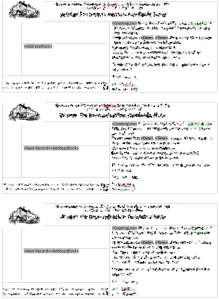
MailMerge-ImageClick image to enlarge, it’ll show that I have «AddressBlock» , «GreetingLine» , «Date» , «Time» inserted into the merge, each postcard is in a Text box, with smaller text boxes inside. This then keeps each merge record together, so when a «NextRecord» is called it knows where to put the details without missing any information. Like the issue that Karen is having below, if you read the comments.

Onwards and upwards

16 years at my place of work has come to an end, its flashed by in the blink of an eye.

I’m looking forward to starting my new role next week in the city of Manchester.

I’ll be continuing this blog on as my new post follows quite closely on from my old one, but with new technologies and most importantly users, thousands of them, using systems that I’ll be involved in creating.

The road ahead is an exciting one, I’m looking forward to the challenge..

Blackboard Administrator – Success!

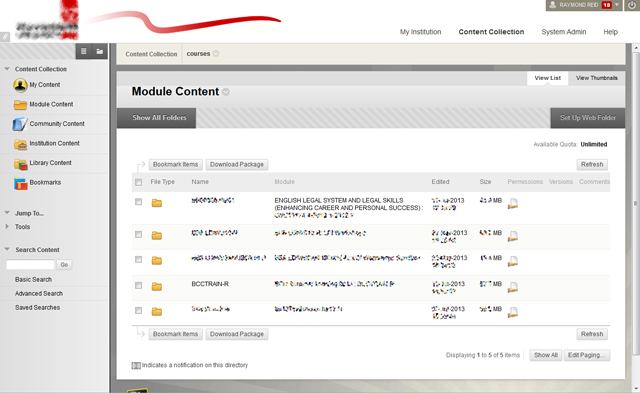
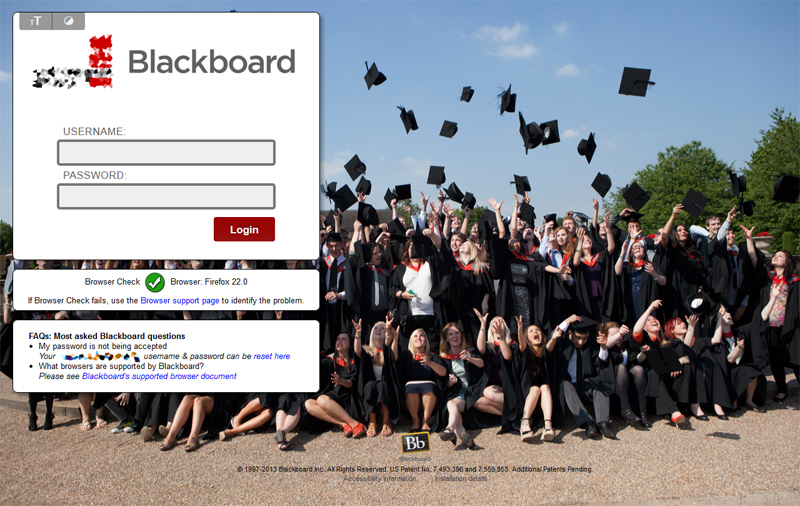
Do you want your institutional Blackboard to look this good?

Front-image  inside  cc  new-front

help

I’ve just completed the two Blackboard accreditation’s, one in ‘Community & Engagement Administration certification’ & the other in ‘Content Management GUI Administrator certification’, April & May 2013.

93% in both exams

Blackboard UK en_GB language pack

I’ve have recently rewritten our Blackboard English language pack for the University which currently employs me. If anyone knows the in’s and out’s of the Blackboard language pack, they’ll know that this is a long and arduous task to perform.

Blackboard out the of box is set up for the American school system marketplace and it’s language reflects this. Within the English University system we call Courses – Modules, Modules – Widgets and Organisations – Communities. This pack is available for you’re Institution without having to pay Blackboard an astronomical fee to change it for you. Why should you have to go through all the 120,000 plus changes that I’ve already performed.

The immediate feedback that I’ve received from our academics at our institution is that of rejoice. “Finally the words we use day to day are now reflected in Blackboard.”

If you’d like it, get in touch.

Blackboard 9.1 SP8 + Accessibility Setting

Just a little something that I noticed and fixed when I was redesigning the look & feel to our Blackboard installation.

access-icons

These icons which may or may not be on your installations login page. They open up a separate pages which detail how to change your font sizes within your browser and how to keep your own high contrast colors / colours theme from your operating system within Blackboard.

Problem is Blackboard have screwed up the CSS you can’t actually click on them to take you to the required page to view the settings / help information.

How to fix:

Hunt down the ‘login.css’ file, this will be containing in whichever theme that your using, download it via ‘System Admin’, Communities ‘Brands & Themes’, ‘Theme and Palette Catalogue’ locate theme and use the Action menu to ‘Download’.

Unzip the contents of the zip somewhere on your hard drive, keeping the folders intact.

Search the file for this section:

#loginHeader ul li.contrast:before {
content: "T";
font: 130%/1 "Utilicons";
color: #f0f0f0;
text-align: center;
position: absolute;
right: 0;
left: 0;
top: 5px;
text-shadow: 0 -1px 0 rgba(0, 0, 0, .2);
z-index: 2;
}

Remove or comment out line:

z-index: 2;

Now just zip it back up again, go back to the same place that you downloaded it from and select ‘Edit’ rather than ‘Download in the ‘Action’ menu. Then ‘Upload Theme Package’ from your machine.

You’ll need to clear the browser cache, as Blackboard is a right pain as it holds on to images and css in the cache.

Now check your login page, the buttons will be now clickable.

Job done.

Redhat 5.9 Lampp libdl.so.2 library issues

We think that some kind of Redhat upgrade broke our Lampp installation, we still haven’t gotten to the bottom of why it started to happen.

instead of Lampp starting Mysql etc, it was just returning the following:

/bin/bash: error while loading shared libraries: libdl.so.2: cannot open shared object file: No such file or directory

After much Googling and head scratching we worked out that the script ‘lampp’ wasn’t looking for the library files because it wasn’t recognising the Redhat version that we were running.

Code below showing lines 45 to 62 of the ‘lampp’ script:

45 function osguess() {
46 if test -f /etc/redhat-release
47 then
48 if egrep “9 ” /etc/redhat-release > /dev/null
49 then
50 if egrep “Tikanga” /etc/redhat-release > /dev/null
51 then
52 echo “unknown”
53 return 0
54 fi
55 echo “rh9”
56 return 0
57 fi
58 else
59 echo “unknown”
60 return 0
61 fi
62 }

Line 50 has been changed from “Fedora” to “Tikanga” to represent the release of Redhat that we’re running.

This simple change allows the script to correctly link to the library files required to run the script, without the change, the script didn’t know which version of Redhat was running and then returns 0, which stops the script from looking in the correct place for the library files.

If you open your ‘/etc/redhat-release’ file then edit your lampp script to represent the release, this fix should work for you.

Our file contains:

Red Hat Enterprise Linux Server release 5.9 (Tikanga)

So you know how we knew that our version was “Tikanga”.

Fedora or Tikanga ?

Something very strange happen today when we tried to start LAMPP

. . .

cat: error while loading shared libraries: libc.so.6: cannot open shared object file: No such file or directory
/bin/sh: error while loading shared libraries: libdl.so.2: cannot open shared object file: No such file or directory
Starting XAMPP for Linux …
/bin/bash: error while loading shared libraries: libdl.so.2: cannot open shared object file: No such file or directory
. . .

We Googled it, noticing that some other people got the same problem:

http://viewsby.wordpress.com/2013/02/01/lampp-error-while-loading-shared-libraries-libc-so-6-xampp-centos/

So we tried

cat /etc/redhat-release

Red Hat Enterprise Linux Server release 5.9 (Tikanga)

so edit lampp, replace ‘Fedora’ with ‘Tikanga’, save lampp and restart lampp, works!

Don’t understand why ‘Fedora’ worked before, but not now.

Blackboard Collaborate Webinar

I’ve completed my first experience of speaking in and listening to a Webinar, the following is a summary of what I thought of it, hopefully it will prove useful to you when deciding whether this is the route that you should take.

Tools / Equipment used:

  • Blackboard Collaborate (used to be called elluminate)
  • Toshiba Laptop (Windows 7), Windows XP wasn’t as fluid so a reinstall was called for.
  • External Microphone
  • External Headphones

Advantages:

  • Easy to setup, although first run setup can have Java issues, so it would be best to check that you don’t have these by attempting to access the room well in advance to your webinar time.
  • People don’t have to travel to be in a particular location to participate.

Disadvantages:

  • No feedback when you’re talking, just silence to keep you company, yes your listeners can ask questions but the feedback which you get whilst talking to people face to face or via Skype is just not there.
  • Very depended on attendees’ equipment, as in if you have a rubbish microphone you will come across badly to the people who are listening – so it’s best to do pre-recording if you can, that way you can listen to how you sound.  One of our hosts on the day sounded very tinny.

My topic was on Enterprise Architecture, it was difficult to see if the audience was following what I was saying, I had done several run throughs of my session and had also recorded it, but that still didn’t stop me from thinking what I was talking about didn’t make sense due to the silence whilst doing it live. I found myself dumbing down my content as I was talking, which in hindsight I don’t think I should’ve done as it’s very noticeable by all the pauses, if you listen to my talk. The Webinar can be accessed here: http://emergingpractices.jiscinvolve.org/wp/webinar-applying-ea/

Cold Sores and Skiing

Okay so I know this has nothing to do programming or computers like the other posts do – But it does have something to do with Technology – Read on if your intrigued.

A bit of background: I enjoy skiing every year and every year I come back from the slopes with a face full (not one or two) of cold sores – Damn that herpes simplex virus.

I can deal with the one or two which I without fail get throughout the year, but the ones I get whilst skiing are a pain in the arse & hurt & makes me a miserable sod – Ask my wife.

Okay so if your like me then hopefully the information contained within will help you out.

If you live in the United Kingdom and complain to your doctor about them, then he might if your lucky give you one of these on an NHS prescription : Virulite – I asked and got one!
"Virulite is a electronic device which beams a UV light onto the affected area, reducing the healing time of the cold sore by half."

If not then buy yourself one, as they are the best thing that exists to get rid off cold sores once they start to appear and sometimes it can also preempt them appearing in the first place from tingle onwards, it depends how fast you get your device to the tingle. Boots in the UK sell there own branded one for cheaper than Virulite @ £35.99 : Unfortunately these are no longer sold by Boots.

Other things that I cannot live with whilst skiing and help (slightly, see below) :

If like me it seems if you ski hard and push yourself then you’ll get them no matter what you try or use. This year is the first time that I’ll be trying to use all 3 (Electronic Zapper, Sunsense & Combo Scarf) in the same visit. I’ll update this post if it works as I’ll be ecstatic.

Slight update : At the same time of getting my GP to give me a Virulite on NHS prescription they also gave me a course of tablets, 400mg of Acyclovir, 1 taken twice a day as a preventative measure.

So I’m armed to the teeth this year – Keep posted to see if it works!

After ski holiday update : It worked!! Zero cold sores! for my first time ever – My holiday included skiing most of the Espace Killy mountain range, also with a nice icy fall on the le Face Olympique Black run in Val d’Isere, so plenty of stress and pushing myself to the limit was involved. Still no cold sores – I put these results down to the use of the Acyclovir tablets and the Sunsense SPF 50 lip balm, as they are the two things that I’ve never used before, whether is was one rather than the other, I’ll never be testing that as I’m just happy that I’ve finally got a solution to not getting cold sores & will be doing the same for each and every future ski trip.

Hopefully some of the above will work for you.