SWFTools installation with freetype problem

pdf2swf is required for Alfresco global setting. We need to install swftools.

error message when try to install swftools:

./configure

. . .

freetype/config/ ftheader.h: No such file or directory

. . .

Freetype has been install at /usr/local/include/, ftheader.h is located in /usr/local/include/freetype2/freetype/config

Solution:

Add a symbolic link

ln -s /usr/local/include/freetype2/freetype     /usr/include/freetype

JasperReports Server 4.0 on Glassfish 3.1 / 3.2.1

1. Download JasperReports Server installation package

2. Unzip this package and then following the steps in chapter 5 ‘Installing the War File Distribution’ within JasperReports-Server-CP-Install-Guide.pdf.

3. If you are running Mysql 5.5, then there is an issue posted here

Scroll down the page to ‘5. Known Issues

* 21953: The JasperReports Server repository database has issues under MySQL 5.5. There is a conflict with a new reserved word: MAXVALUE. Also, the storage engine needs to be specified as engine=Innodb (instead of type=Innodb).

In order to use the command ‘maxValue‘, you need to replace with all ‘maxValue‘ lines which exist without quotes to have quotes, so ‘`maxValue`‘ and change any ‘Type=Innodb‘ to ‘ENGINE=Innodb‘, within all the *.ddl files in /jasperreports-server-cp-4.0.0-bin/buildomatic/install_resources/sql/mysql/

4. Now edit the file default_master.properties, add the following settings for glassfish

appServerType = glassfish2
appServerDir =/Glassfish3.1/glassfish

5. edit /jasperreports-server-cp-4.0.0-bin/buildomatic/bin/validation.xml

add following to line 342

<equals arg1="${appServerType}" arg2="glassfish2" />

Before code looks like this:

<if>
<not>
<or>
<equals arg1="${appServerType}" arg2="skipAppServerCheck" />
<equals arg1="${appServerType}" arg2="tomcat5" />
<equals arg1="${appServerType}" arg2="tomcat6" />
<equals arg1="${appServerType}" arg2="jboss" />
</or>
</not>

After you code should look like this, part in bold is the change:

<if>
<not>
<or>
<equals arg1="${appServerType}" arg2="skipAppServerCheck" />
<equals arg1="${appServerType}" arg2="tomcat5" />
<equals arg1="${appServerType}" arg2="tomcat6" />
<equals arg1="${appServerType}" arg2="jboss" />
<equals arg1="${appServerType}" arg2="glassfish2" />

</or>
</not>

Without this the installation script will not continue. This is probably a bug within the system.

6. Manually install data-pooling and data resources required for glassfish,mysql database username and password should be set correctly in js-glassfish-ds.xml :

when glassfish is running, use asadmin add databaseresources.

/usr/local/glassfish3.1/glassfish/bin/asadmin add-resources  /jasperreports-server-cp-4.0.0-bin/buildomatic/build_conf/default/js-glassfish-ds.xml

7.  Comment out the glassfish datasource autoinstallation script.

Edit /jasperreports-server-cp-4.0.0-bin/buildomatic/bin/app-server.xml, comment out the glassfish2 datasources option

Code before the change:


 <if>
          <equals arg1="${appServerType}" arg2="glassfish2" />
          <then>
              <runasadmin>
                  <arg value="start-domain"/>
                  <arg value="domain1"/>
              </runasadmin>
             <runasadmin>
                  <arg value="add-resources"/>
                  <arg value="${currentConf}/js-glassfish-ds.xml"/>
              </runasadmin>
              <runasadmin failOnError="false">
                  <arg value="create-jvm-options"/>
                  <arg value="${glassfishJvmOpt}"/>
              </runasadmin>                  <runasadmin>
                  <arg value="stop-domain"/>
                  <arg value="domain1"/>
              </runasadmin>    

          </then>
      </if>


Code after the rem’d out statement around line 415, Marked in Bold:


 <if>
          <equals arg1="${appServerType}" arg2="glassfish2" />
          <then>
             <!--  <runasadmin>
                  <arg value="start-domain"/>
                  <arg value="domain1"/>
              </runasadmin>
             <runasadmin>
                  <arg value="add-resources"/>
                  <arg value="${currentConf}/js-glassfish-ds.xml"/>
              </runasadmin>
              <runasadmin failOnError="false">
                  <arg value="create-jvm-options"/>
                  <arg value="${glassfishJvmOpt}"/>
              </runasadmin>                  <runasadmin>
                  <arg value="stop-domain"/>
                  <arg value="domain1"/>
              </runasadmin>    -->

          </then>
      </if>
...


8. Stop glassfish and Run the autoinstall command js-install-ce.bat in Windows or js-install-ce.sh in Unix. If you are using MYSQL 5.5 should use minimal argument to avoid default full installation(Default installation comes with sample data and sample table, but will bring sql insert error in MYSQL 5.5  because the java source code still use MaxValue). Use help can get all the functions.

./js-install-ce.sh minimal (unix)

js-install-ce.bat (windows)

9. All the files should then be copy to /glassfish3.1/glassfish/domains/domain1/autodeploy/jasperserver.war/

10. Create a glassfish-web.xml file in /glassfish3.1/glassfish/domains/domain1/autodeploy/jasperserver.war/WEB-INF/

Paste the following information to this file:

<?xml version="1.0" encoding="UTF-8"?>
<!DOCTYPE glassfish-web-app PUBLIC "-//GlassFish.org//DTD GlassFish Application Server 3.1 Servlet 3.0//EN" "http://glassfish.org/dtds/glassfish-web-app_3_0-1.dtd">
<glassfish-web-app>
<resource-ref>
<res-ref-name>jdbc/dataSource</res-ref-name>
<jndi-name>jdbc/jasperserver</jndi-name>
</resource-ref>
<class-loader delegate="true"/>
</glassfish-web-app>

<jndi-name>jdbc/jasperserver</jndi-name>” is required for glassfish3.1, otherwise the server will throw “javax.naming.NameNotFoundException: JasperServerDataBase not found” error message during deploying the web application. This is not necessary for glassfish3.0. The default setting in web.xml can be picked up by glassfish3.0.

11. Restart glassfish3.1. All should now work!

Xplorer2 integration with DirectFolders

DirectFolders is an application that makes file system folder navigation quick and easy. It’s sweet spot is when you’ve got deeply nested folders. You can create bookmarks for them which are accessible via hotkeys anytime, anyplace.

Xplorer2 is a powerful, extensively customisable replacement for Windows Explorer. The Windows 7 native Explorer specialises in making life hard for anyone using it so turned to Xplorer2 for the sake of my mental health.

There are free ‘lite’ versions of  both applications and they are well worth a test drive.

By default, DirectFolders launches the native Windows Explorer but it can be configured to launch Xplorer2 instead.

Configuring DirectFolders to launch Xplorer2

To get DirectFolders to launch Xplorer2:

  1. launch the DirectFolders ‘Configure…’ window
  2. Select the Options tab
  3. In the Misc section
    1. Select ‘Open Folder in’: Custom
    2. Enter the command to launch Xplorer2:
      C:\Program Files\zabkat\xplorer2\xplorer2_64.exe /R:%1
      Substitute the correct location of Xplorer2 for your installation.

image


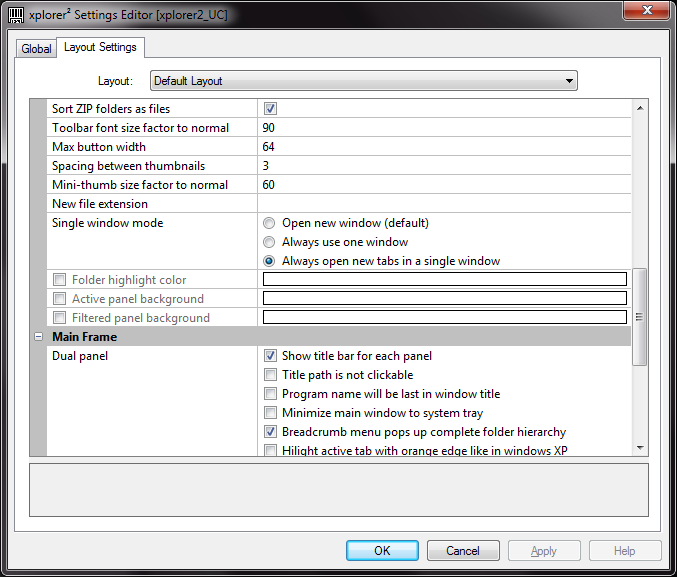
Configuring Xplorer2 to load folders in a new tab

After making the changes above, DirectFolders will launch it’s shortcuts in Xplorer2 but it will create a new instance of Xplorer2 for each launch. To make the folders appear as new tabs in the same Xplorer2 instance do the following:

  1. Open Xplorer2 advanced options: Tools –> Advanced Options
  2. Select the Layout Settings tab
  3. Scroll down to Single Window Mode
  4. Select ‘Always open new tabs in a single window’
  5. Select OK
  6. Restart Xplorer2 and test launching shortcuts from DirectFolders. They should appear in new tabs in a single instance of Xplorer2.

image

Xplorer2 has a lot of shortcut functionality built in, so you could manage folder navigation entirely within it. I’m so comfortable with DirectFolders having used it for years that it suits me better to integrate the two.

Putty session locked up? Try Ctrl+q

If your putty session locks up and becomes unresponsive, try hitting Ctrl+q to restore it. I’ve had this problem many times but only today spotted that it happened when I hit Ctrl+s by mistake. According to this post at StackOverflow, Ctrl+s sends the XOFF instruction which results in the lack of response.


Alfresco Share custom themes

Want to know how to create your own custom Alfresco Share theme ?

Follow this guide:

Copy an existing themes folder & files, such as /Share/themes/greenTheme to /Share/themes/YOUR_THEME

Copy /share/WEB-INF/classes/alfresco/site-data/themes/default.xml to /share/WEB-INF/classes/alfresco/site-data/themes/YOUR_THEME.xml

Edit YOUR_THEME.xml

Default Blue Theme
theme.default

Change where it mentions ‘Default Blue’ to a title of your choosing, change ‘theme.default‘ to ‘theme.YOUR_THEME‘.

Edit /YOUR_THEME/presentation.css

Change all occurrences of ‘greenTheme‘ :
.yui-skin-greenTheme
for
.yui-skin-YOUR_THEME

Edit /YOUR_THEME/yui/assets/skin.css

Change all occurrences of ‘greenTheme‘ :
.yui-skin-greenTheme
for
.yui-skin-YOUR_THEME

The above 2 steps can be easily done using a find and replace function in any text editor.

Now select your new theme within Share under the Admin Console.

Now edit the .css files and images to your hearts content, refreshing the browser to see your changes.

Lovely!

Glassfish3, Alfresco3.3g, LDAP authentication and properties mapping

Need to know how to get LDAP working with your Alfresco installation?

Confused by all of what you’ve read on forums and wikis?

Then follow this guide :

1. Edit /YOUR_Glassfish/domains/domain1/lib/classes/alfresco-global.properties, let alfresco use LDAP authentication chain:

Before : authentication.chain=alfrescoNtlm1:alfrescoNtlm

After : authentication.chain=alfrescoNtlm1:alfrescoNtlm,ldap1:ldap

2. Create folder /YOUR_Glassfish/domains/domain1/lib/classes/alfresco/extension/subsystems/Authentication/ldap/ldap1

3. Copy file /YOUR_Glassfish/domains/domain1/applications/alfresco/WEB-INF/classes/alfresco/subsystems/Authentication/common-ldap-context.xml to /YOUR_Glassfish/domains/domain1/lib/classes/alfresco/extension/subsystems/Authentication/ldap/common-ldap-context.xml

4. Copy the two files (ldap-authentication.properties, ldap-authentication-context.xml) in /YOUR_Glassfish/domains/domain1/applications/alfresco/WEB-INF/classes/alfresco/subsystems/Authentication/ldap/ to /YOUR_Glassfish/domains/domain1/lib/classes/alfresco/subsystems/Authentication/ldap/ldap1/

5. Edit /YOUR_Glassfish/domains/domain1/lib/classes/alfresco/subsystems/Authentication/ldap/ldap1/ldap-authentication.properties for ldap setting:

ldap-authentication.properties

# This flag enables use of this LDAP subsystem for authentication. It may be
# that this subsytem should only be used for synchronization, in which case
# this flag should be set to false.
ldap.authentication.active=true

# The authentication mechanism to use
ldap.authentication.java.naming.security.authentication=simple

# The default principal to use (only used for LDAP sync)
ldap.synchronization.java.naming.security.principal=YOUR_PRINCIPAL_NAME

# The password for the default principal (only used for LDAP sync)
ldap.synchronization.java.naming.security.credentials=YOUR_PASSWORD

# How to map the user id entered by the user to that passed through to LDAP
# - simple
#    - this must be a DN and would be something like
#      uid=%s,ou=People,dc=company,dc=com
# - digest
#    - usually pass through what is entered
#      %s
# If not set, an LDAP query involving ldap.synchronization.personQuery and

# ldap.synchronization.userIdAttributeName will

# be performed to resolve the DN dynamically.

ldap.authentication.userNameFormat=CN=%s,CN=Users,DC=your company

# The URL to connect to the LDAP server
ldap.authentication.java.naming.provider.url=Your LDAP URL

# This flag enables use of this LDAP subsystem for user and group
# synchronization. It may be that this subsytem should only be used for
# authentication, in which case this flag should be set to false.
ldap.synchronization.active=true

# The query to select all objects that represent the groups to import.
#ldap.synchronization.groupQuery=(objectclass\=groupOfNames)

# The group search base restricts the LDAP group query to a sub section of tree on the LDAP server.
ldap.synchronization.groupSearchBase=Your search base
# If positive, this property indicates that range retrieval should be used to fetch
# multi-valued attributes (such as member) in batches of the specified size.
# Overcomes any size limits imposed by Active Directory.
ldap.synchronization.queryBatchSize=10

# The query to select all objects that represent the users to import.
ldap.synchronization.personQuery=(objectclass\=person)

# The user search base restricts the LDAP user query to a sub section of tree on the LDAP server.
ldap.synchronization.userSearchBase=Your user search base

# The attribute name on people objects found in LDAP to use as the uid in Alfresco, depend on your LDAP server
ldap.synchronization.userIdAttributeName=cn

# The timestamp format. Unfortunately, this varies between directory servers.
ldap.synchronization.timestampFormat=yyyyMMddHHmmss'.0Z'

# The attribute on person objects in LDAP to map to the email property in Alfresco,depend on your LDAP server
ldap.synchronization.userEmailAttributeName=mail

# The attribute on person objects in LDAP to map to the first name property in Alfresco, depend on your LDAP server
ldap.synchronization.userFirstNameAttributeName=givenName

# The attribute on person objects in LDAP to map to the last name property in Alfresco,depend on your LDAP server
ldap.synchronization.userLastNameAttributeName=sn

# The default home folder provider to use for people created via LDAP import,depend on your LDAP server
ldap.synchronization.userOrganizationalIdAttributeName=company

6. Restart glassfish. Alfresco Explorer and Share should now work with your LDAP server.

NetBeans 6.9.1 launches 6.9 instead, 64-bit Java and Windows 7

I love NetBeans. Sean loves MyEclipse. We both use whichever is most appropriate for the current task. Both have their sweet spots but I think NetBeans is a lot less fiddly to maintain and use…usually.

My most recent attempt to install NetBeans 6.9.1 failed. I couldn’t get it to work on Windows 7 Enterprise 64-bit. Everything about the installation process seemed to work. No errors were thrown and the correct shortcuts were created but whenever I tried to launch 6.9.1 it launched 6.9 instead (I had installed 6.9 previously).

After some digging around and comparing my setup to Sean’s I suspected NetBeans 6.9.1 couldn’t find the version of Java it needed so 6.9 was launched instead. I had loads of Java and NetBeans  installations present but not Java 1.6.0_21. I read somewhere about the JavaFX updates needing 1.6.0_21 so I installed it but NetBeans continued to run using the older Java 1.6.0_18 that had been specified during installation.

Isolating the root cause would have been nice, but we’re working in a business here so the best solution tends to be the fastest solution. I removed all the NetBeans installations apart from 6.8 (so I could inherit settings from it). During uninstallation of NetBeans I also opted to remove the settings directory. NetBeans didn’t go quietly. Uninstall program list items remained after uninstallation and the uninstall process failed for second uninstall which prevented any further uninstall attempts until I rebooted. The joys of Windows 7. I then removed all Java installations. I decided to install the 32-bit version of the JDK 1.6.0_21 because the 64-bit version has auto-update disabled and we want auto-update. I then installed NetBeans 6.9.1. Upon launching NetBeans, all was well.

Lessons learned:

  • need to do a bit of tidying up every now and again
  • Windows 7 is still annoying
  • 64-bit apps are often more trouble than they are worth.

Watch out for 64-bit Java/NetBeans issues:

Forensic disk recovery

If someone gave you a Sandisk Cruzer 8GB micro USB stick*, which had their entire life of work stored on it. This stick couldn’t be directory listed under Windows 7 only Windows XP.. nothing could be copied off nor copied on to it.

What would you do ?

Well here’s what I did to recover the files.

first of all I tried all the normal windows based solutions:

Chkdsk
Recovery software GetDataBack – (Which has served me well in the past)

No joy! Nothing! Nada! – USB just disconnects when you try anything.

So I turn to Unix for the answer, the USB stick could be mounted and read, it just crashed out when trying to copy the files/directories from the device, saving about 10% of the data.. I’m assuming its a hardware failure of the device.

This is when I turn to open source forensic software – Ubuntu Rescue Remix

Here’s how I used it :

I created a bootable image of the Ubuntu Rescue Disk ‘to a different USB stick’, following the instructions at Pendrivelinux.com

Booted that, then used the following commands :

Create ‘hdd1’ directory in the ‘mnt’ folder
sudo mkdir /mnt/hdd1

Mount your machines hard drive to the folder ‘/mnt/hhd1’
sudo mount /dev/sda1 /mnt/hdd1

Check the ‘mount’ command to see what the USB device your trying to recover is called, in my case its mounted as ‘/dev/sdc1’
sudo mount

Use that information to constuct the following command; ddrescue-retry to read upto 3 times-USB device-name of image to write-name of log to write
sudo ddrescue -r 3 /dev/sdc1 /mnt/hdd1/recovery-image /mnt/hdd1/recovery-log

Create a new directory on your hard drive to store all the recovered files.
sudo mkdir /mnt/hdd1/recovery

Run ‘foremost’ which is some forensic software created by the US Air force; foremost-image name-output directory
sudo foremost -i /mnt/hdd1/recovery-image -o /mnt/hdd1/recovery

This will extract files ‘Without filenames’ to the output directory, slight issue, but lucky to get anything back at all.

* Other USB sticks are available..