Migrating Classic ASP websites from Windows 2003 IIS 6 to 2012 R2 IIS 8
I have recently been working on getting some major applications off a Windows 2003 platform, as this platform no longer meets security requirements, as we all know Microsoft stopped supporting the servers in July 2015.
To do this process I started by using Windows Server 2003 Migration Planning Assistant and Atlassian’s JIRA to map out the key steps and outcomes. I then worked with our Service / Storage and Networks teams to get the new servers spin up in VMware and get them to open oh’so important firewalls so the new servers have the same access as the old one.
It was then a case of modelling the structure on my local installation of IIS (Internet Information Services) there were some parts that weren’t straight forward as it seems this I will explain here. I hope for your sake that your company has already migrated away from Classic ASP code.
- Global.asa – This file now needs to be in each application, rather than just one on your top level website.
- In your AppPools – Make sure that you’ve set ‘Enable 32-bit applications’ to True.
- Oracle – You still need to be install the Oracle 32-bit client, if of course your website is connecting to oracle databases using Microsoft ODBC for Oracle.
- WebDeploy – Use WebDeploy from Visual Studio to the server to deploy your code, much easier than using a FTP server also saves having to deploy to each individual server, you can write a PowerShell script which will deploy to all your servers in one go.
Install the ASP roles and features:
-
- On the taskbar, click Server Manager.
- In Server Manager, click the Manage menu, and then click Add Roles and Features.
- In the Add Roles and Features wizard, click Next. Select the installation type and click Next. Select the destination server and click Next.
- On the Server Roles page, expand Web Server (IIS), expand Web Server, and then expand Application Development.
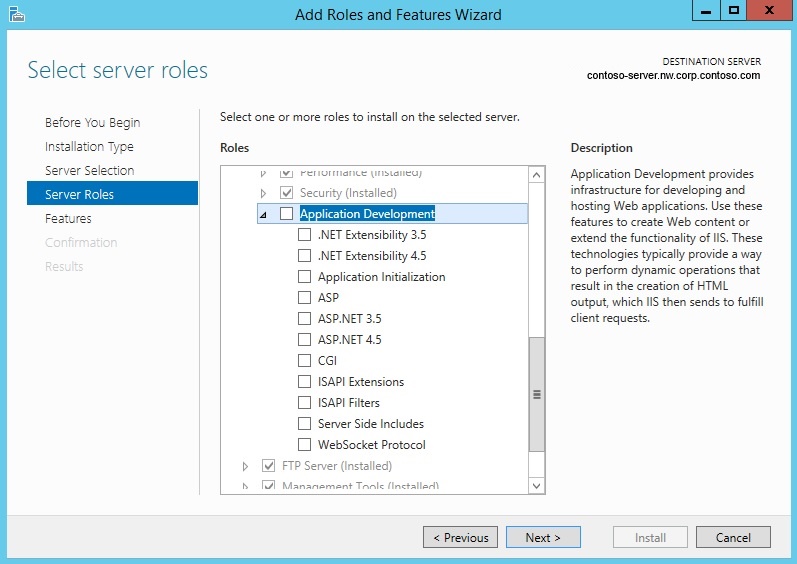
- On the Server Roles page, select ASP.
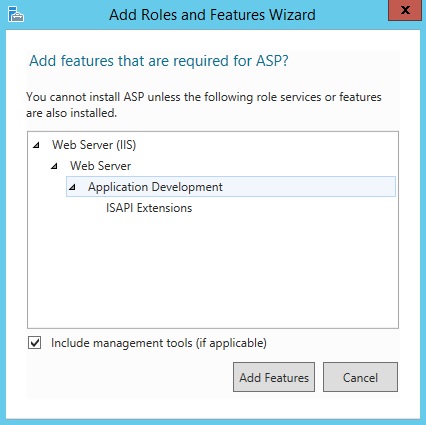
- If the Add features that are required by ASP? dialog box appears, click Add Features. (This page appears only if you have not already installed ISAPI Extensions on your server.)
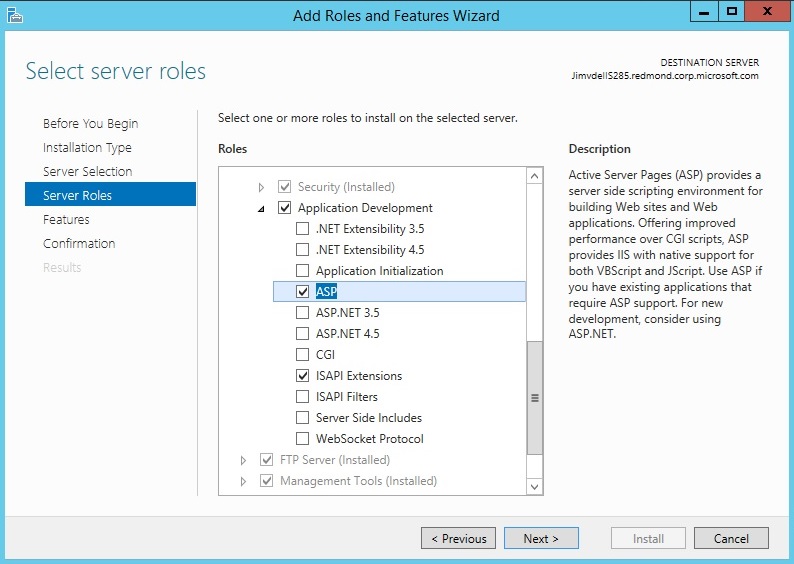
- On the Server Roles page, ASP and ISAPI Extensions should be selected. Click Next.
- On the Features page, click Next.
- On the Confirmation page, click Install.
- On the Results page, click Close.
How to show your debug messages on screen… I’ll come back to this in a few days, it late at night and I’m too tired to continue explaining.
The above should get you started. Good Luck!
Right, I’m back to finish off the post.
Within IIS click the server name in the left hand tree, double click ASP within the IIS panel, open up the ‘Debugging Properties‘ and change ‘Send Errors To Browser‘ to True. You can do this as described above for the whole site and all it’s web applications or a application basis. To do this, select the application name on the left before double clicking on ASP.

You might also need to switch on Detailed errors for a particular error page. Let say your page is reporting 500 not found and you know that the page is there, a index.html file in the root displays correctly (a good test of sanity). To turn these on, Double click on Error Pages within IIS panel on the site or the application as above, then select the error code on the left and click ‘Edit Feature Settings…‘ on the right.

This then shows the following dialog box, where you click ‘Detailed errors‘.

This process creates or appends a web.config file in the root of your site or application which contains the following:
Microsoft OLE DB Provider for ODBC Drivers error ‘80004005’
If you’re getting this in a Classic ASP application and you’ve done all the above steps, then your Global.asa file has the wrong connection, maybe your oracle client doesnt have it in its tnsnames.ora file
Microsoft OLE DB Provider for ODBC Drivers error '80004005'

[Microsoft][ODBC driver for Oracle][Oracle]ORA-12154: TNS:could not resolve the connect identifier specified

/blah/blah.asp, line 26
Or if your getting something like the following then you’ve missed the ‘Enable 32-bit Applications‘ to True in the AppPool settings
Microsoft OLE DB Provider for ODBC Drivers error '80004005'

[Microsoft][ODBC Driver Manager] Data source name not found and no default driver specified

/blah/blah.asp, line 141
 Not so many...